
8 best slideshow makers of 2026 for family photos.
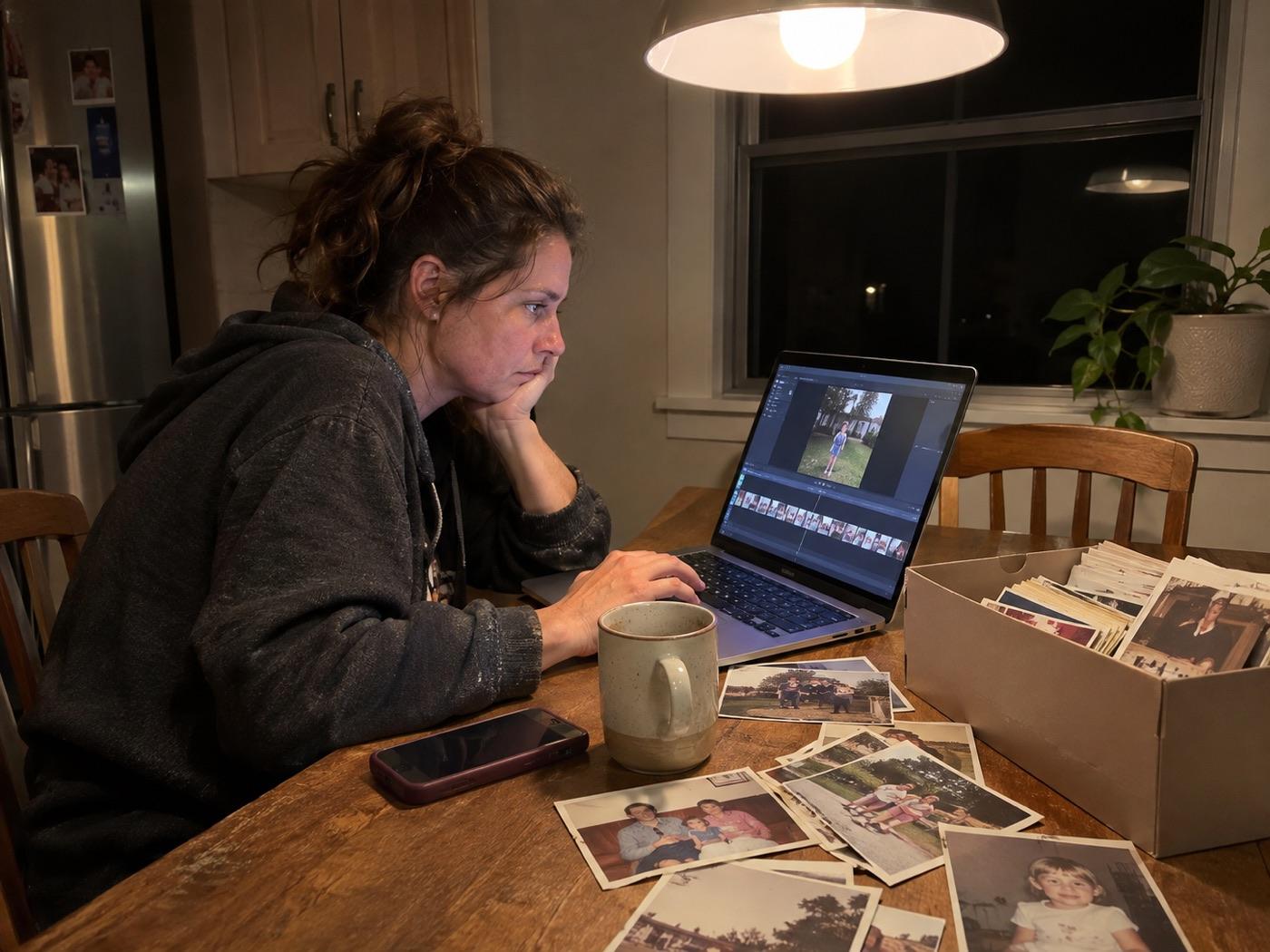
You need a video for a birthday, anniversary, graduation or memorial. Your photos are on your phone and in family albums. You want the best slideshow maker for the job, with little time to learn how it works.
We looked at each tool’s features, who it suits, what it does well, and where it falls short, using each vendor’s own pages. Let’s look at your options.
Choose your fit
Start with what you need.
Want to place every photo yourself, work on your phone or skip the editor? Each tool suits a different way of making a family video.
- Best for hands-off family videos: Glinded
- Best for design enthusiasts: Canva
- Best for hands-on editors: CapCut
- Best for Apple users: iMovie
- Best for regular video makers: Movavi Video Editor
- Best for drag-and-drop slideshows: Adobe Express
- Best for Windows users: Microsoft Clipchamp
- Best for Google Photos users: Google Photos
Glinded: best for hands-off family videos
Turn your family’s photos and short clips into a video to download and keep. Glinded suits families planning a birthday slideshow or an anniversary slideshow. Put their name and milestone on the opening title, then share years of memories on a TV, projector or phone.
These real families agreed to share the moment they watched their family’s video.
Charlie’s mom watches the 60th birthday video he made for her. Megan’s husband watches Sam’s 18th birthday video. Vinicio’s grandmother watches the video on a phone.
Key features
- Add photos and clips in any order; Glinded sorts them from early years to now.
- Skip learning an editor; Glinded handles timing, changes between photos and the opening title.
- Restore old or faded photos, compare before-and-after pairs and choose what to keep.
- Let relatives add photos through one private link, keeping surprises out of the group chat.
- All videos include licensed music: Creative Commons (smallest package) or Epidemic Sound (paid packages).
- Your video arrives by email in minutes.
Pros
- Licensed music included, so venues are easy to deal with
- Pay once per video, with no subscription or watermark
- See your opening cover before paying
- Ask for changes in your own words
- Your family’s own photos, with no invented faces or moments
Cons
- No timeline editor or template gallery
- Made for one occasion video, not weekly or marketing videos
Sharing and showing: Download and keep your video, wide for TVs or upright for phones, and play without internet. Every video includes licensed music and a one-page track-and-licence note for the venue.
One video costs: $8.99 to $14.99 for 40 to 60 photos; videos with up to 5 photos cost nothing.
Canva: best for design enthusiasts
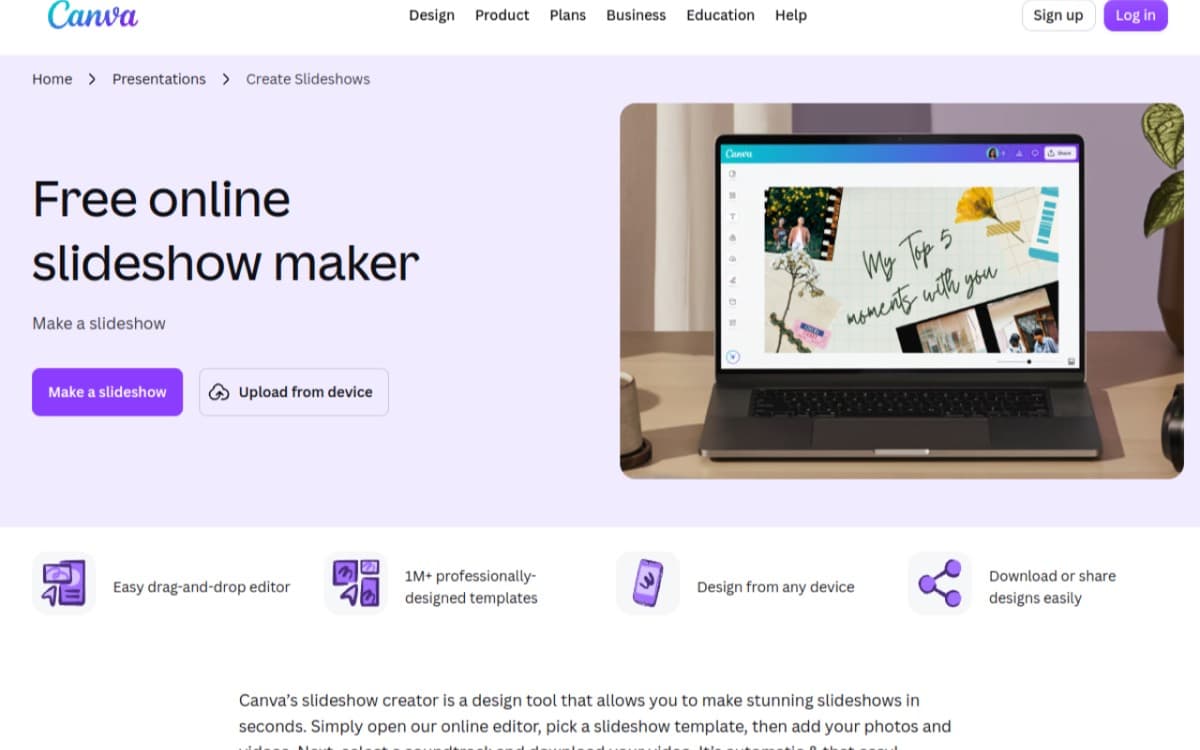
Canva is a design tool with a video editor. Choose a slideshow template, add your photos and pick music. It suits someone who wants to choose the look of a birthday or graduation video and place each photo themselves.
Key features
- Works on the web, computers and phones.
- Slideshow templates give you a design to start with.
- You place each photo yourself.
- Music includes free and premium tracks.
Pros
- A choice of slideshow templates
- Free downloads up to 1080p and 30 minutes
- Make your slideshow on a computer or phone
Cons
- Premium elements carry watermarks on the free plan
- You must place every photo yourself
- Its licence does not mention playing the music at a venue
Sharing and showing: You download a video file through Share, then Download. Canva marks music tracks for commercial use or, for popular music, personal use.
One video costs: No charge using only free elements; Canva Pro requires a subscription. Canva’s own page.
CapCut: best for hands-on editors
CapCut is a video editor for phones and computers. Start with a slideshow template or a blank page, then place photos, audio and text on a timeline. It suits someone who wants to edit each part of a family video.
Key features
- Works on the web, Windows, Mac, iPhone and Android.
- Start with a template or a blank video.
- Place photos, audio and text on a timeline.
- An audio library is included.
Pros
- Edit each part on a timeline
- Use it on a phone or computer
- Pick music from the included audio library
Cons
- Its own pages disagree about watermarks on the free plan
- Longer videos or 1080p and above may ask for Pro
- Its licence does not mention playing the music at a venue
Sharing and showing: You save the video file to your phone or computer. CapCut’s licence says its Sounds are for personal entertainment and non-commercial videos.
One video costs: A free plan is available; Pro costs vary by country after sign-in. CapCut’s own page.
iMovie: best for Apple users
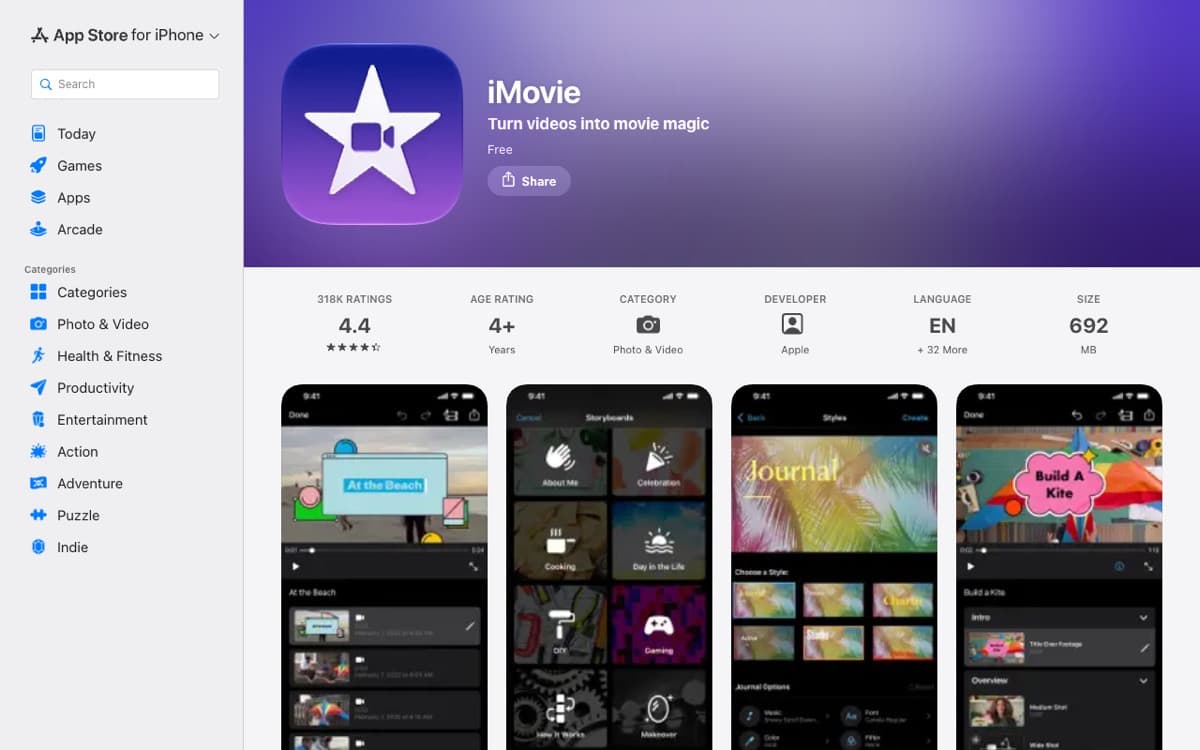
iMovie is Apple’s video editor for iPhone, iPad and Mac. On iPhone and iPad, Magic Movie can build a video from an album. It suits families using Apple devices who want either an automatic start or a timeline they can edit.
Key features
- Magic Movie builds videos from albums on iPhone and iPad.
- Mac photos get a slow zoom automatically.
- More than 130 soundtracks adjust to the video’s length.
- Save videos up to 4K.
Pros
- No charge and no paid tier
- No watermark on saved videos
- Over 130 soundtracks adjust to fit your video’s length
Cons
- No Windows or Android version
- Apple’s soundtracks are limited to personal, non-commercial use
- Its licence does not mention playing the music at a venue
Sharing and showing: You save a video file or play it on TV through Apple TV with AirPlay. Apple says its soundtracks are for personal, non-commercial use.
One video costs: No charge, with no paid tier. iMovie’s own page.
Movavi Video Editor: best for regular video makers
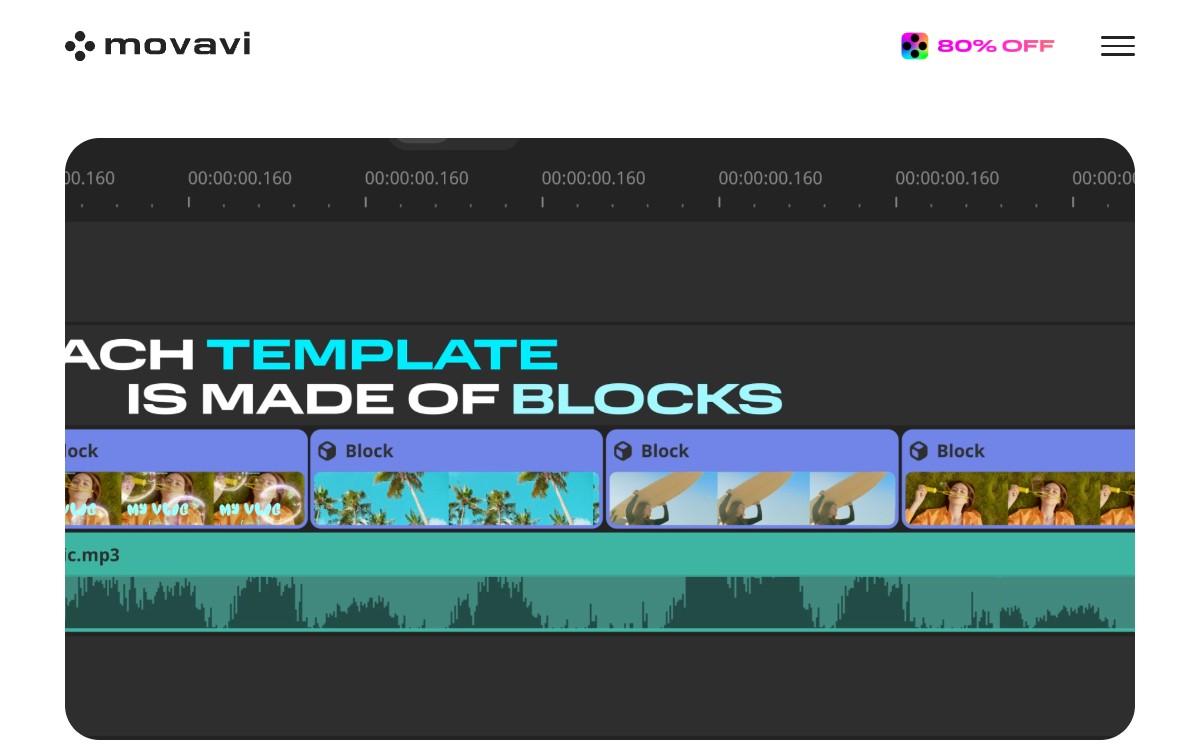
Movavi is a full video editor you install on Windows or Mac. It suits someone making a birthday, anniversary or graduation slideshow who also wants to edit other videos. Its many tools may be too much for one simple family video.
Key features
- The Slideshow Wizard has ready-made templates.
- Manual Mode lets you choose effects, titles and music on a timeline.
- Editing tools include filters, colour correction and precise cuts.
- Add voice-over, automatic subtitles and sounds from a built-in library.
Pros
- No limit on photos, videos or music tracks.
- Useful for family slideshows, vlogs and business videos.
- Build a slideshow with ready-made templates in the Slideshow Wizard.
- Add your voice and automatic subtitles.
Cons
- The trial adds a watermark and limits saved videos to 60 seconds.
- The trial does not include 4K.
- The full version needs a monthly or yearly subscription.
- Its pages do not mention playing the music at a venue.
Sharing and showing: You save a video to your computer or upload to YouTube, Vimeo or Google Drive. Movavi says its music comes from others, with each track’s licence shown in the program.
One video costs: A monthly or yearly subscription, with prices varying by country. Movavi Video Editor’s own page.
Adobe Express: best for drag-and-drop slideshows
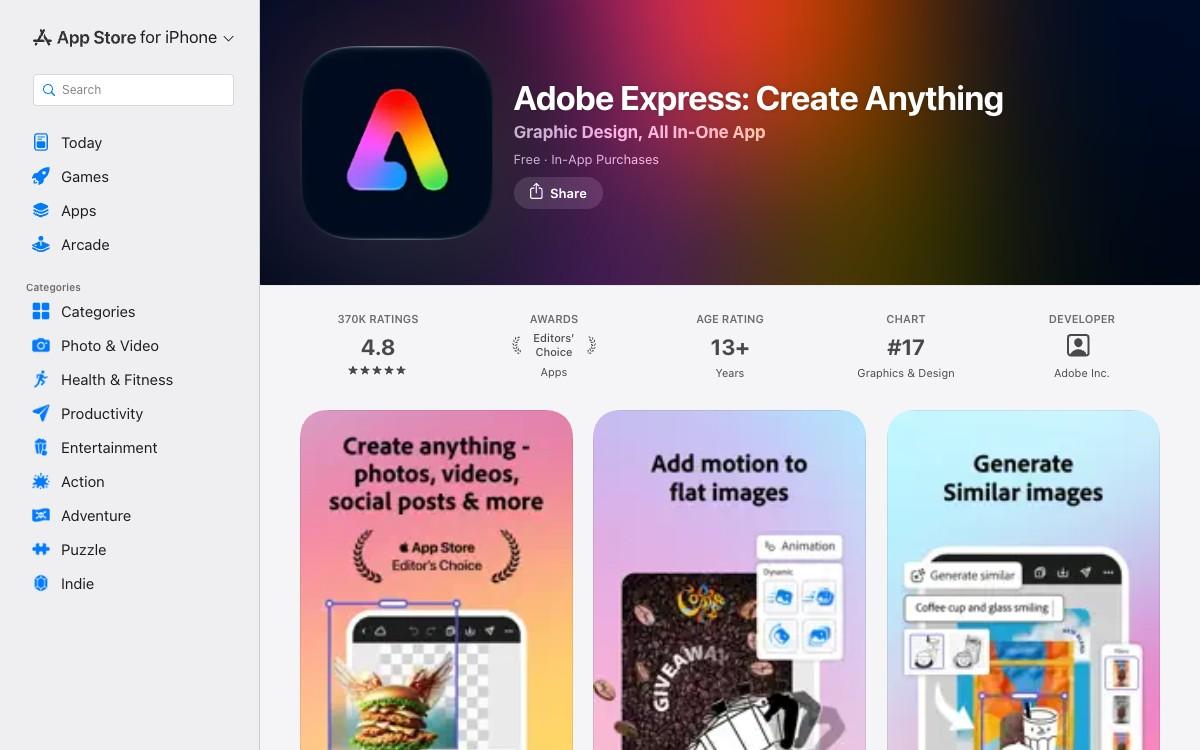
Adobe Express is a design app for desktop browsers and phones. Choose a slideshow template, drag in photos and add a stock soundtrack. It suits someone who wants a template for a family celebration and a no-charge download without a watermark.
Key features
- Slideshow templates use drag and drop.
- Stock music tracks are included.
- Works in desktop browsers and on phones.
- Free videos can run up to 30 minutes.
Pros
- Adobe says free downloads have no watermark
- Premium has monthly billing with no annual commitment
- Drag and drop photos into slideshow templates
Cons
- The free plan does not include 4K
- A Premium trial rolls into billing when it ends
- Its licence does not mention playing the music at a venue
Sharing and showing: You download the video to your device or share a link to it. Adobe’s licence lets you use stock music in Adobe Express projects downloaded for use outside the app.
One video costs: A free plan is available; Premium has monthly billing at country-specific prices. Adobe Express’s own page.
Microsoft Clipchamp: best for Windows users
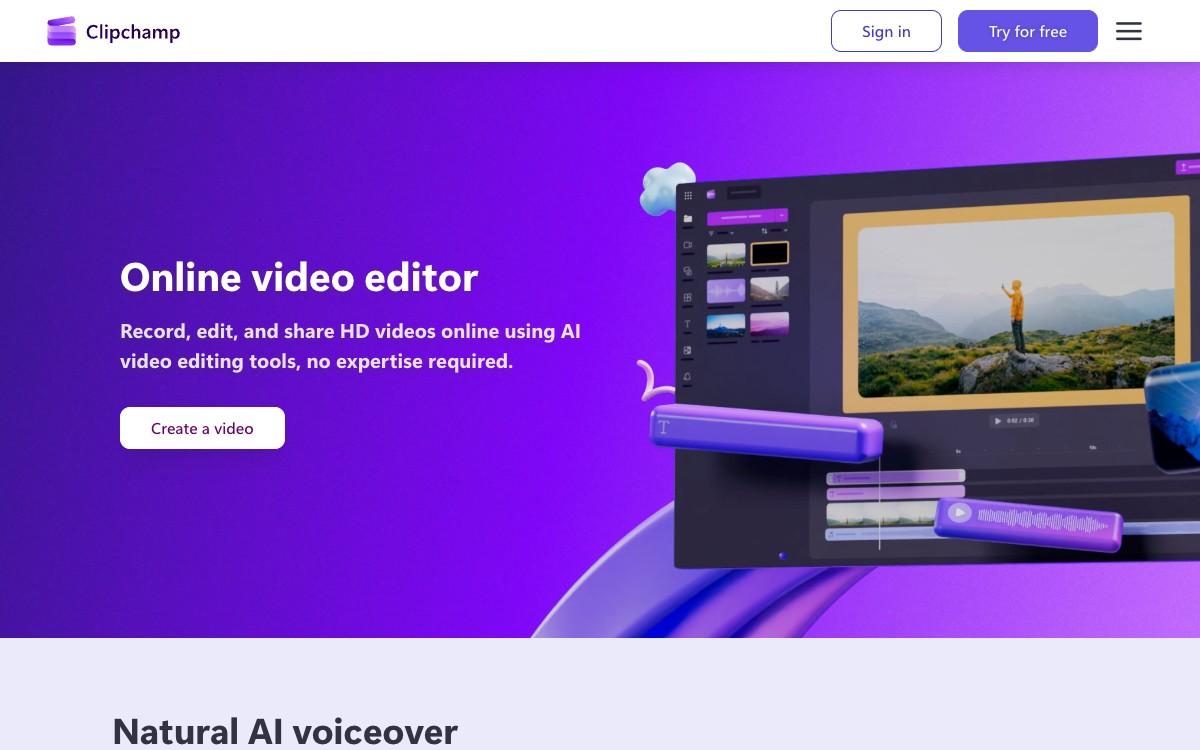
Microsoft Clipchamp is a video editor with templates, a timeline and a tool that turns pictures into a video automatically. It suits families working on a Windows computer who want to edit the details or let the tool build a starting video.
Key features
- Use Edge or Chrome on a computer, or the Windows app.
- An iPhone app is also available.
- Turn pictures into a video automatically.
- The free plan saves up to 1080p without a watermark.
Pros
- Make as many videos as you like on the free plan
- Choose automatic video building or timeline editing
- Save videos to your computer, OneDrive or Google Drive
Cons
- The browser editor does not work on phones or tablets
- 4K and premium stock need a paid plan
- Its pages do not mention playing the music at a venue
Sharing and showing: You save a video file to your computer, OneDrive or Google Drive, or upload to YouTube. Microsoft says its stock music allows commercial and non-commercial videos.
One video costs: A free plan is available; paid features come with Microsoft 365 Personal at $9.99 a month. Microsoft Clipchamp’s own page.
Google Photos: best for Google Photos users
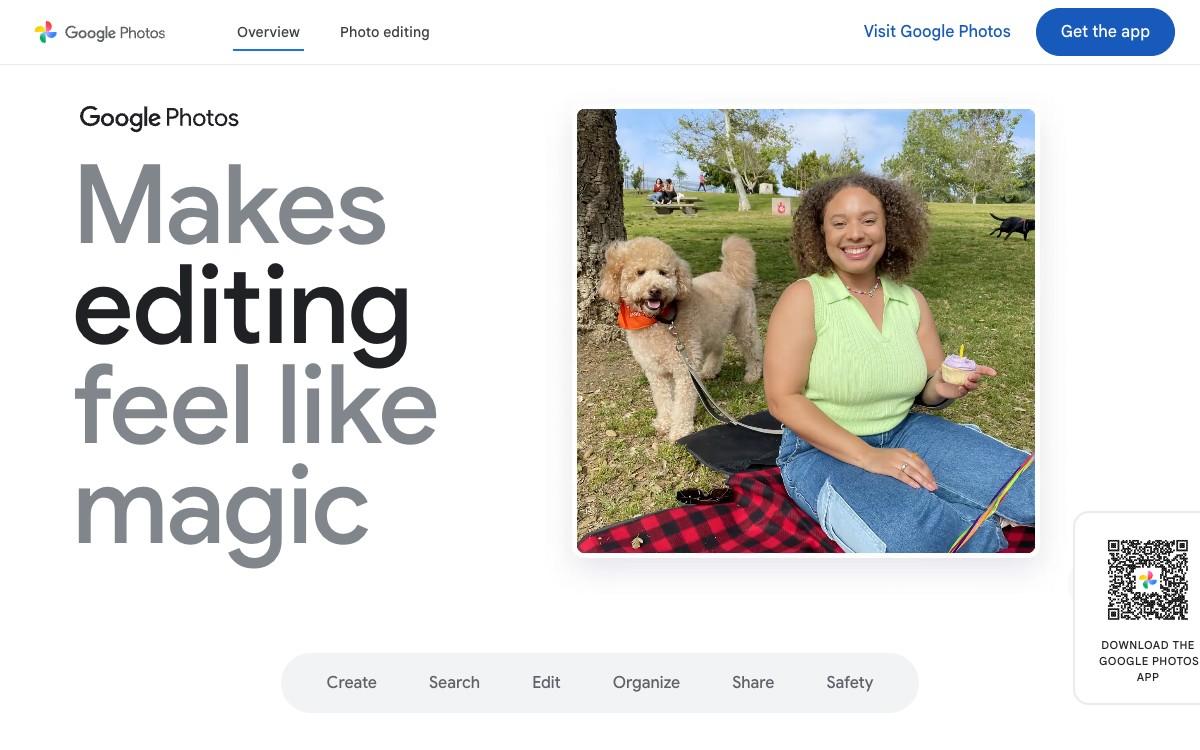
Google Photos is a photo library app that can make a highlight video. Pick people, places or dates, or choose a template with music and text. It suits families who already keep their photos there and want an automatic way to gather memories.
Key features
- Works on Android, iPhone and the web.
- Build a highlight video from people, places or dates.
- Templates come with music and text.
- Accounts include 15 GB shared with Gmail and Drive.
Pros
- Builds highlight videos automatically
- No paid plan is tied to highlight videos
- Show your video on a TV with Chromecast
Cons
- Google does not state watermark details, video quality or a photo cap
- Music is limited to personal, non-commercial use
- Its pages do not mention playing the music at a venue
Sharing and showing: You can save the video in your library, share by link, or show on TV via Chromecast on the same Wi-Fi as your phone. Google says music is for personal, non-commercial use.
One video costs: No paid plan is tied to highlight videos. Google Photos’s own page.
Eight short steps
Making your video with Glinded.
Make a video for a birthday, anniversary, graduation or retirement. These eight short steps take you from getting started to playing it at the party.
Get started
Choose Get Started. No ChatGPT account is needed, and a Glinded account is created when you start. Have the photos you already have at hand, with nothing to sort.
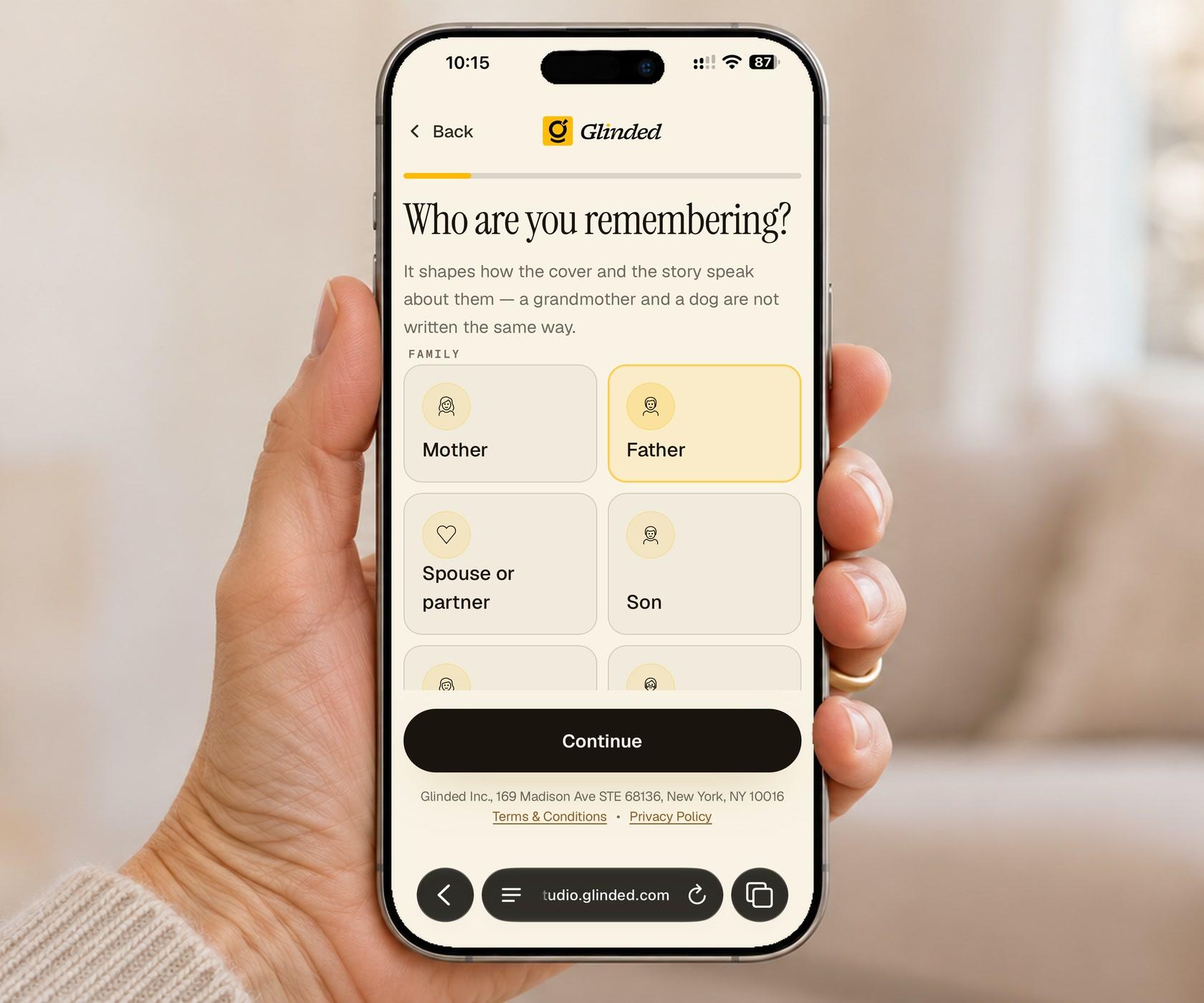
Say who you’re celebrating
Say who the video celebrates and the occasion. Tell Glinded who they are to you and their first name.
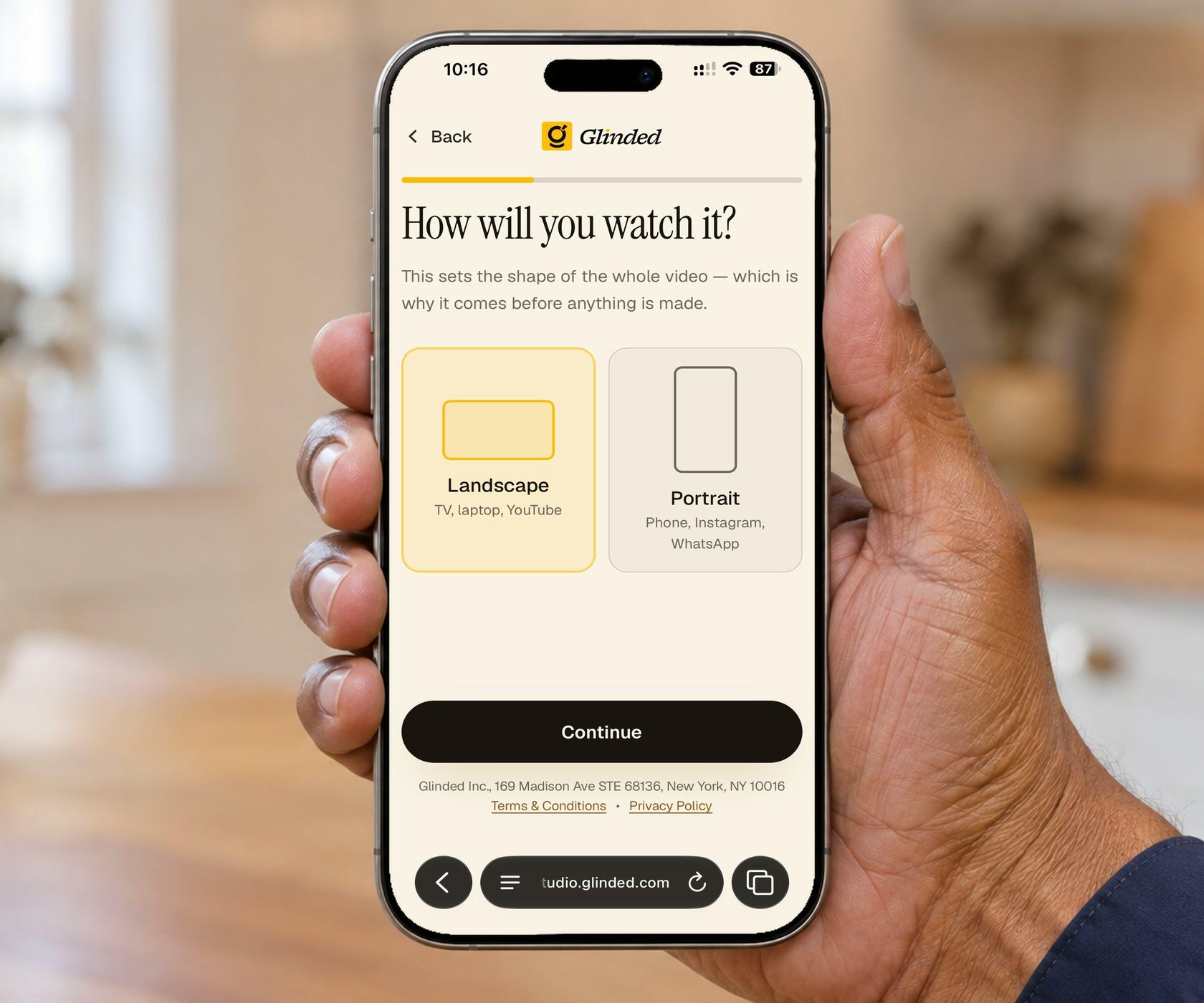
Choose wide or upright
Choose wide for a TV, laptop or the screen at the party. Choose upright for phones. Glinded makes your video in the shape you choose.
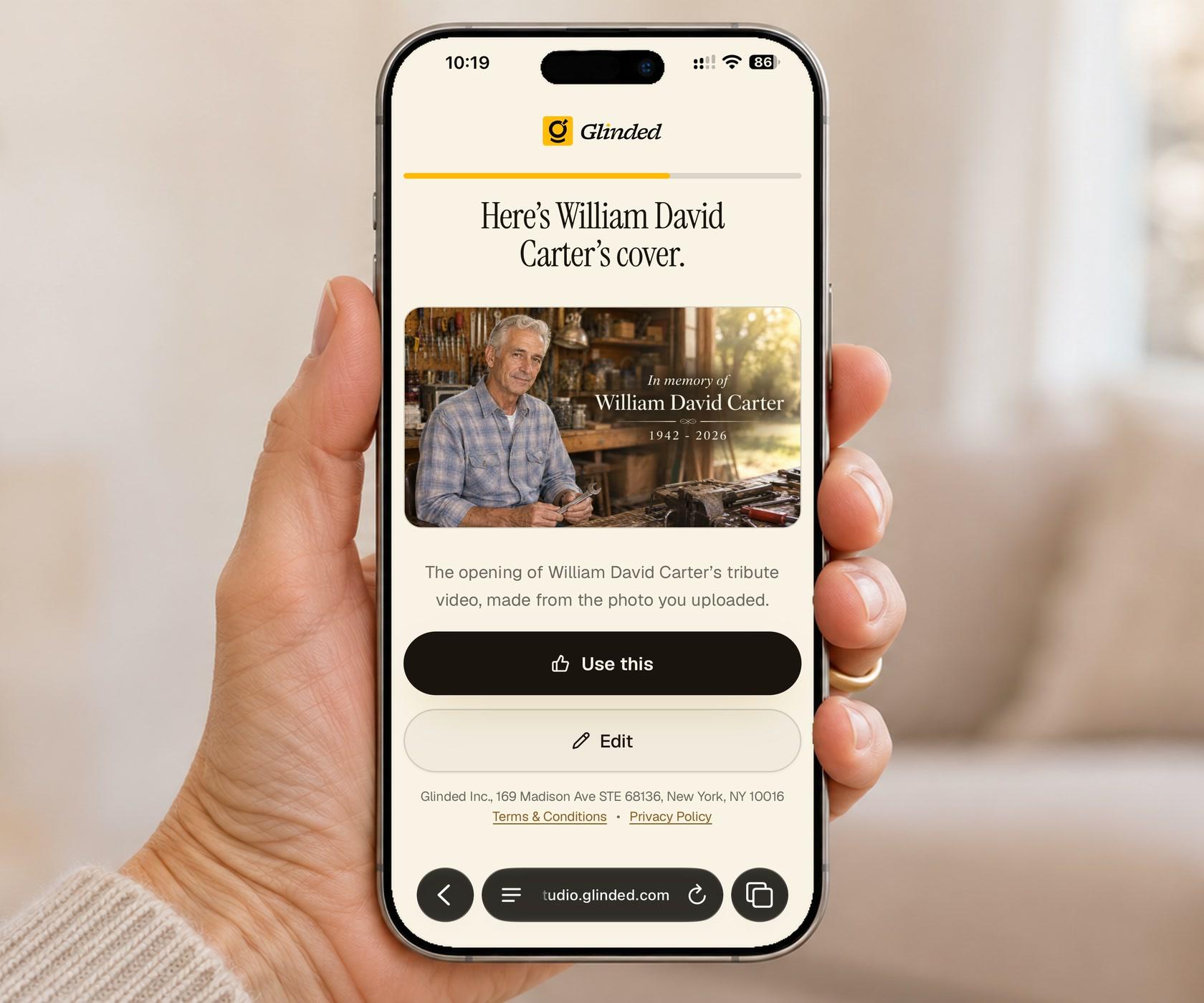
Choose the cover
Write the name and occasion in your own words, such as a 60th birthday or a 50th anniversary, and add one photo. Glinded makes the opening cover for you to approve or edit.
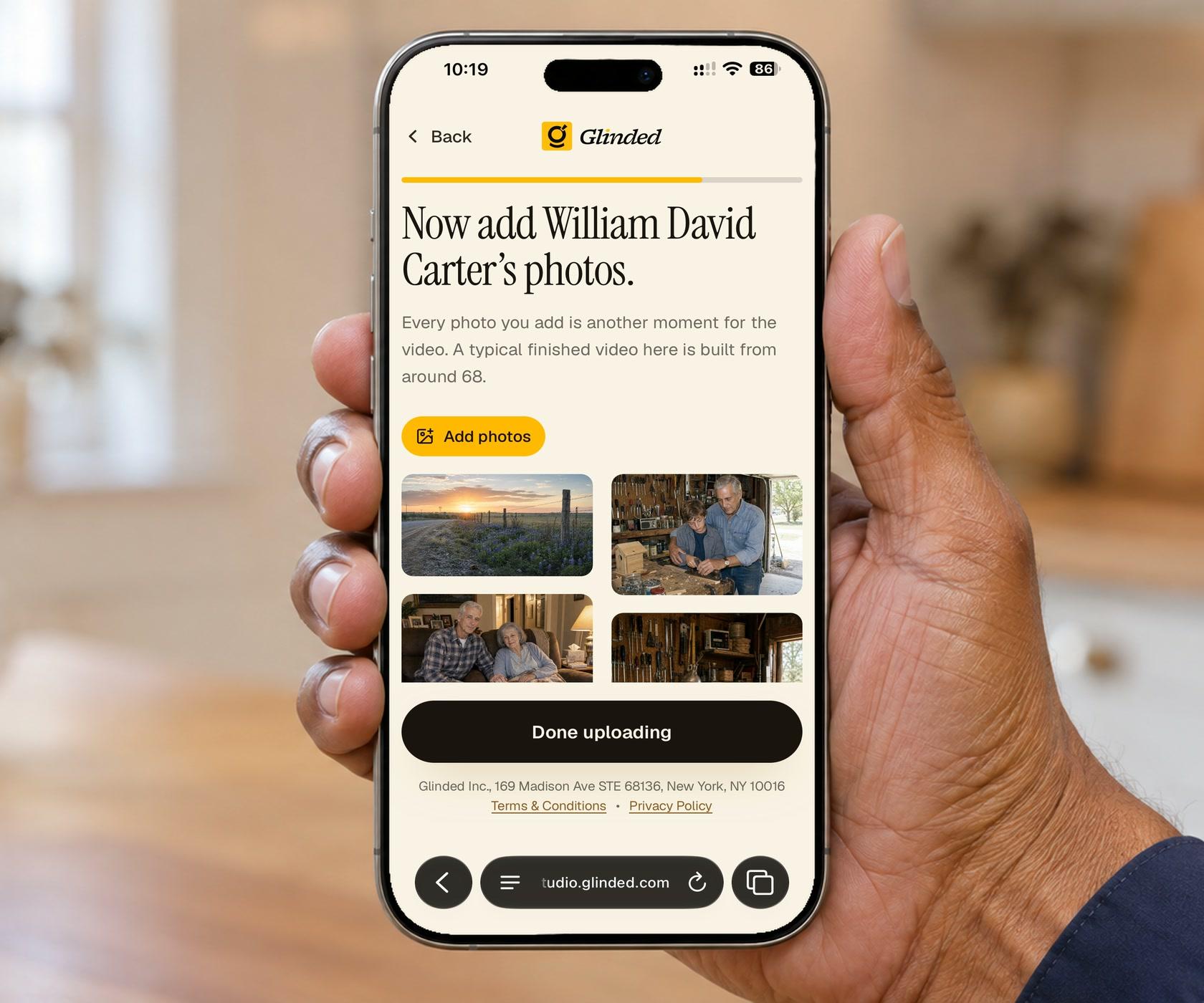
Add your photos
Add the rest of your photos in any order. Glinded arranges them by year. Relatives can add their photos too, through one link you share.
Watch and ask for changes
Your first version arrives by email, usually in minutes. Say what to change in your own words, including the music. Glinded uses licensed music.
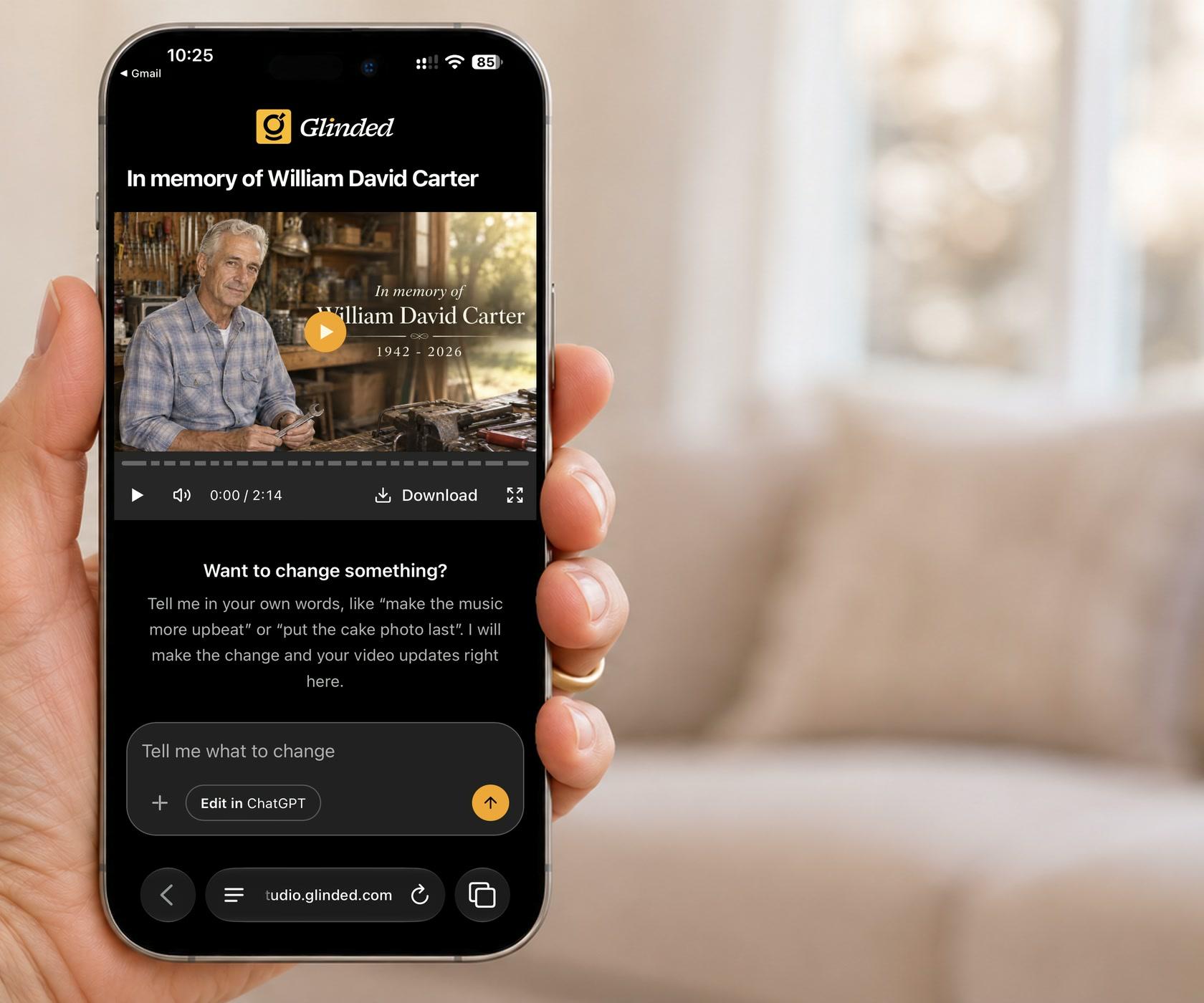
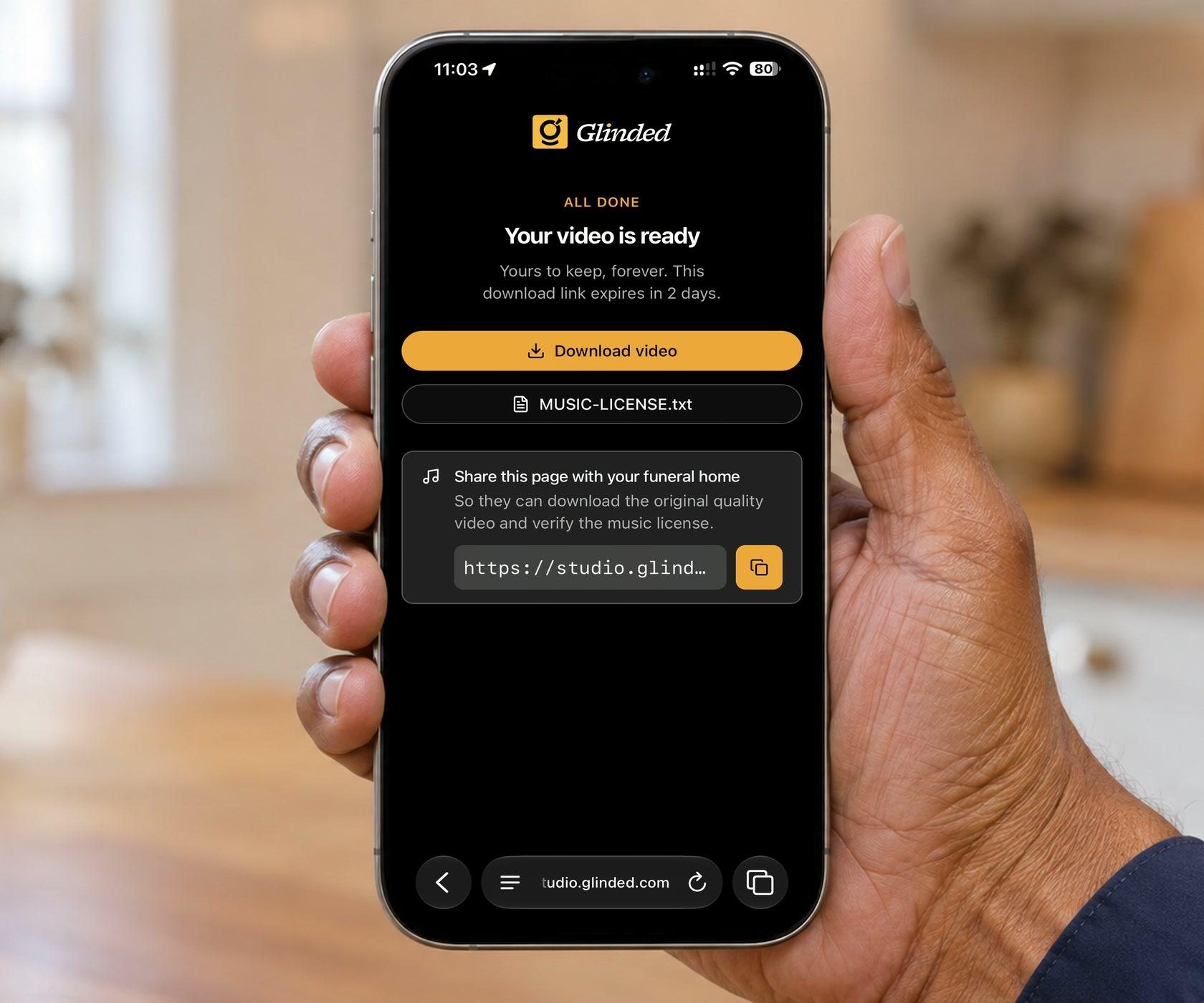
Download your video
Download your video to keep. Its one-page music note names the track and license. Share this page with whoever runs the screen at the venue so they can download the video and check the music note.
Test it where it will play
Bring the downloaded video on a USB drive. The day before, play it on the party screen and speakers with the sound up. Keep a second copy on your phone.
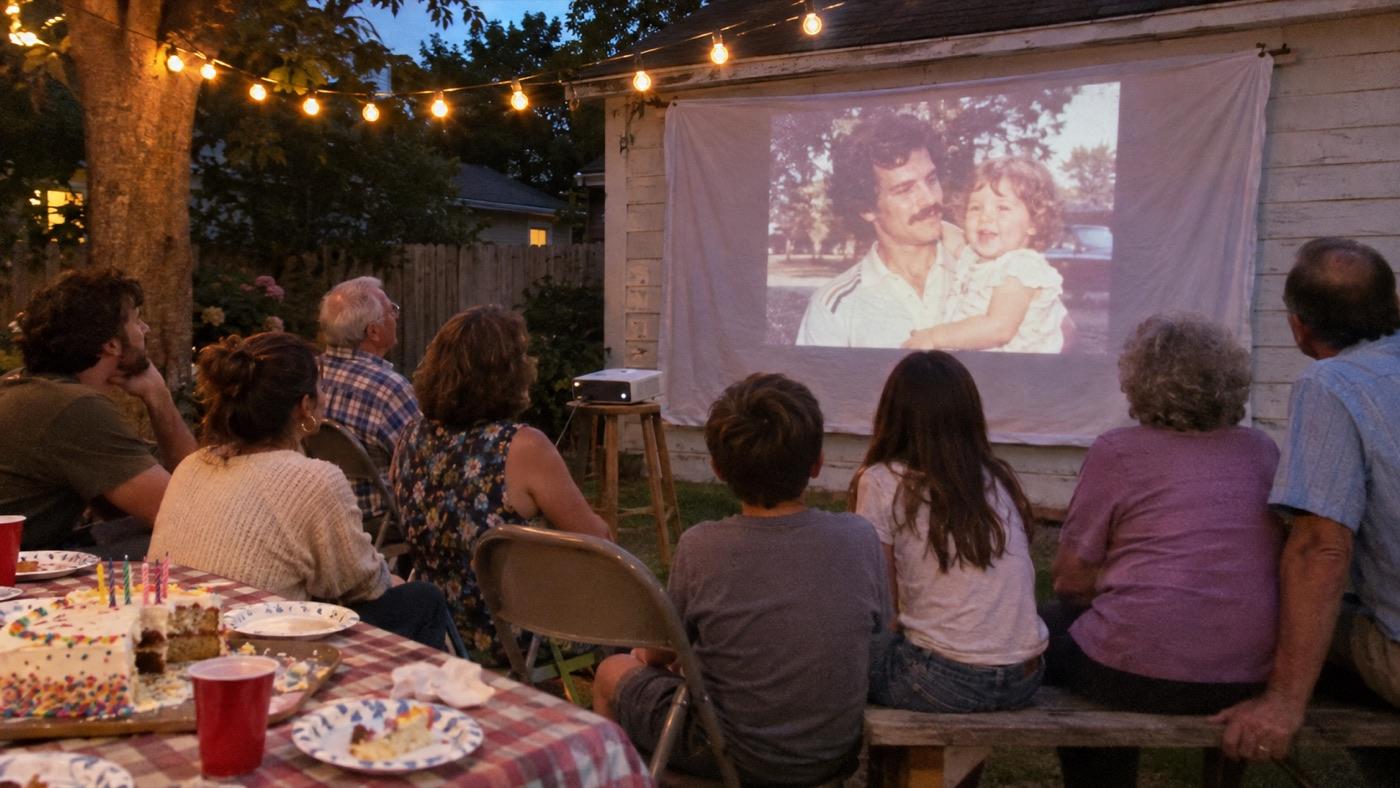
To protect family privacy, the people in this video are not real, and this demo shows what Glinded can make.
The full step-by-step guide is written for a memorial video, and the steps are the same for any occasion.
From Glinded customers
What people say in their own words.
These are public Trustpilot reviews of Glinded, quoted in the reviewers’ own words. The full profile, with every review, is linked below.
“I wanted to give them something special… After a couple of rounds, it came together, and it made me a hero with my dad and stepmom. They still watch it often and bring it up every time we talk.”
Jeff O.Nov 8, 2026 · Trustpilot “I especially liked how the photos, music, transitions, and text were combined to turn my memories into a proper story rather than just a simple slideshow.”
Silvan V.Sep 11, 2026 · Trustpilot “Losing my beloved service dog was already hard, but to be able to upload photos and have a memorial video prepared in minutes helped me tremendously!”
ACEMay 27, 2026 · Trustpilot
YOUR PHOTOS, ONE OCCASION
Let your family photos tell the story.
Glinded turns your family photos into a video with licensed music, from the early years to now. You get a story to keep and share, with no sorting or editor to learn.
NO SUBSCRIPTION · NO WATERMARK · FULL REFUND BEFORE YOU DOWNLOAD