
Ask GlindedCreate a birthday tribute video from family photos, warm and joyful.
PHOTO SLIDESHOW FOR A SERVICE
Funeral photo slideshow.
Turn family photos into a slideshow that can be played at a funeral or memorial service. Glinded helps collect photos, organize the story, add respectful captions and transitions, choose licensed music, and download the finished video.
Start in ChatGPT, upload real photos and videos, invite relatives through a private link, and review the first cut before handing it to the funeral home.
- Collect photos from family in one private place
- Organize unsorted photos into a calm sequence
- Licensed music and a music license file for handoff
QUICK ANSWER
How do you turn family photos into a funeral slideshow?
Short answer
Upload the photos and videos you have from phones, scans, cloud folders, or relatives. They do not need to be collected in one folder or sorted first. Glinded can organize a first cut, suggest restrained captions, choose licensed music, and give family a private upload link.
PHOTO COUNT AND LENGTH
How many photos, and how long should it be?
A funeral photo slideshow does not need every picture. It needs enough variety to feel complete while still fitting the service schedule and the attention of the room.
30 to 60 photos works for many services
A short service slideshow can work with 30 to 40 strong photos. A 3 to 5 minute tribute often has room for about 40 to 60 photos.
Keep the main version 3 to 5 minutes
That length is usually easier to place before a eulogy, during a reflection, or near the end of a service.
Glinded can group unsorted photos
Upload photos from the sources you have. Glinded can organize the first cut around childhood, family, friends, work, hobbies, travel, and recent moments.
Confirm where it will play
A funeral home TV, laptop, projector, or reception screen can affect landscape format, text size, and export testing.
COLLECT FAMILY PHOTOS
How to collect photos from family without chaos.
Families often have photos spread across phones, albums, group chats, and old folders. Start with whatever you can reach. Glinded can accept uploads from different sources, and relatives can add their own photos through a private link.
Upload from any source
Use phone photos, scans, album exports, cloud folders, or loose files. They do not need to be in one folder before Glinded can help.
Invite family through a private link
Glinded can provide a private upload link so relatives can add photos and short video clips from their own devices.
Ask for specific memories
Request childhood photos, family gatherings, work or service photos, hobbies, and recent everyday moments instead of asking for everything.
Accept imperfect scans
A meaningful album photo, phone picture, or older scan can still belong in the slideshow. The story matters more than perfect resolution.
MUSIC FOR PLAYBACK
Choose music the funeral home can actually play.
A favorite commercial song is not automatically cleared for a funeral slideshow. Glinded can choose licensed music by mood and includes a license file with the final download. The licensed music guide explains the handoff in more detail.
MUSIC-LICENSE.txt
- Keepsake (free)
- Creative Commons music details for the selected track.
- Any paid plan
- Epidemic Sound license details for the selected track.
- Venue handoff
- Keep the music license file with the finished video and share both files if asked.
WHAT GLINDED HANDLES
The photo slideshow workflow, handled in one conversation.
Glinded is useful when the family has scattered photos, little time, and no editing experience. You provide the real files and context; Glinded helps assemble the service-ready video.
Photo order
Glinded can create a first order from scattered uploads, then you can ask for any photo to move earlier or later.
Captions and title text
Add names, dates, short captions, or a quote. Glinded can also suggest restrained text when you do not know what to write.
Transitions and pacing
The first cut includes timing, readable text placement, and gentle transitions that fit the service setting.
Music and handoff files
Choose licensed music by mood, then keep the finished video and music license file together for the venue.
HOW GLINDED WORKS
How to make a funeral photo slideshow step by step.
The same ChatGPT conversation can collect files, ask the practical questions, compose the first cut, and help revise the final video before the service.
Open Glinded in ChatGPT
Open the Glinded app in ChatGPT and ask for a funeral photo slideshow. You do not need to pick a slideshow template first.
A short request is enough. Glinded can ask where the slideshow will play, what format it should use, and what tone feels appropriate.
Create a funeral photo slideshow for my father using Glinded. We have family photos from different relatives, and it should be warm, respectful, and ready to play at the service.
Upload photos and invite family
Add the photos and optional short video clips you have from phones, albums, scans, cloud folders, or relatives.
If other family members have photos, use the private upload link so they can contribute without one person collecting every file manually.
Add the practical context
Share the name and dates if you want title text, where the slideshow will play, and whether the final video should be landscape or portrait.
You can also mark must-include photos, mention a family role, add a short quote, or describe the music feel.
Review the first cut
Glinded composes a first version with photo order, simple captions, transitions, pacing, and licensed music based on the files and tone you described.
It works from real uploaded photos and videos. It does not create new faces or invent life details.
Ask for photo, caption, or music edits
If a photo should move earlier, a caption feels too long, or the pacing needs to slow down, ask for the change in chat.
If the music does not fit the room, ask Glinded for another licensed option by mood, instrument, or similar feel.
Download the finished video and test it
When the final version is ready, download the finished video from Glinded.com with the matching music license file.
The download page handles final plan details. See pricing for current video length and music catalog access, then test the video on the service device.
THE WHOLE FLOW
What it looks like inside chat.
Glinded keeps the practical work together: family uploads, service details, first cut, edits, licensed music, and download.
Glinded in ChatGPT
I need to turn family photos into a funeral slideshow for Saturday.
I can help. Upload what you have, or share this private upload link with relatives so they can contribute too.
Private upload link54 photos
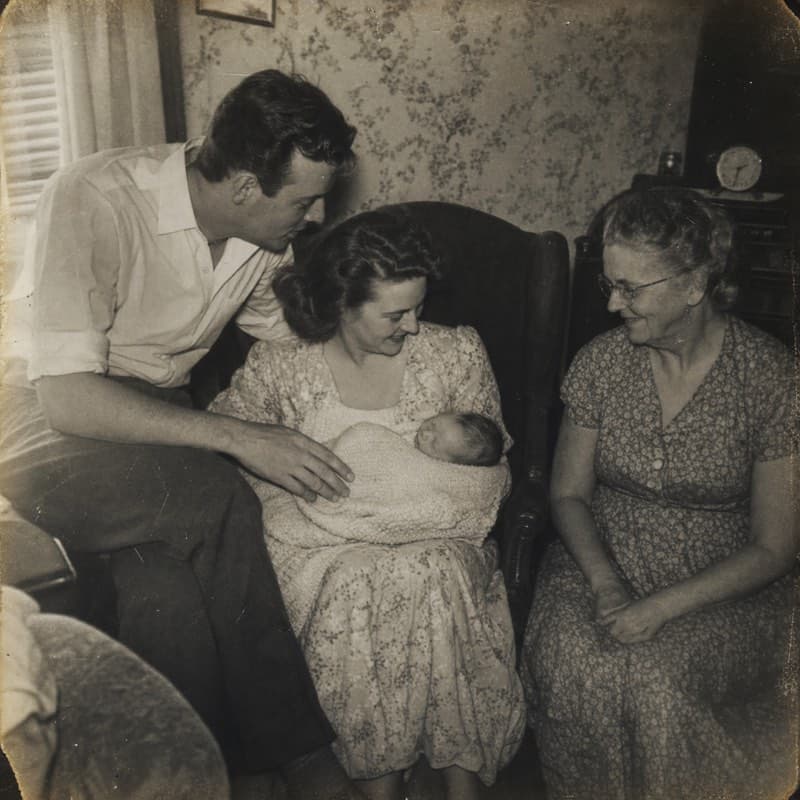
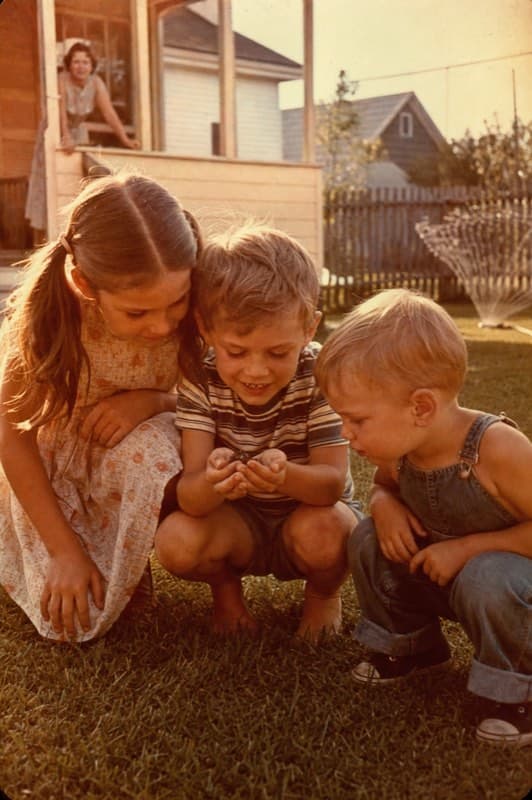
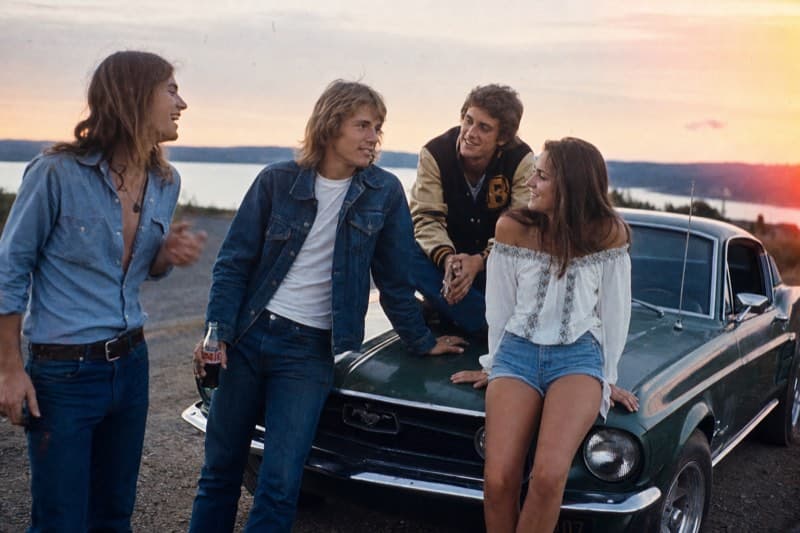
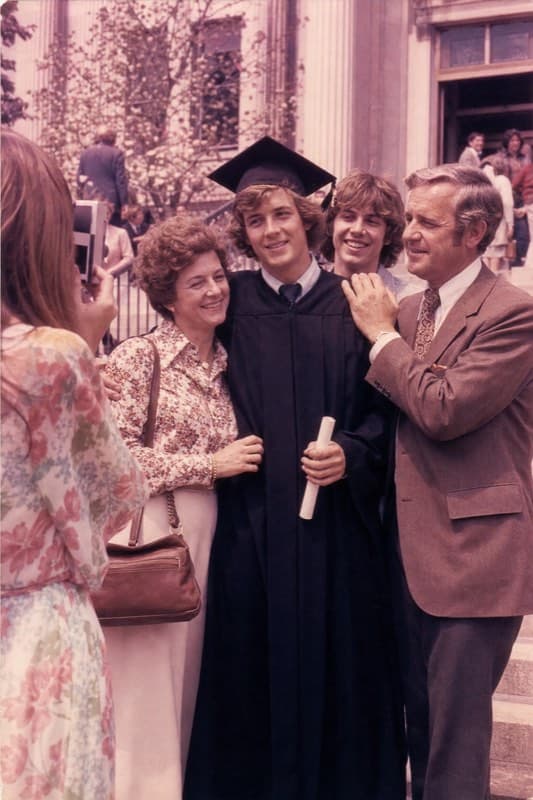
Two quick choices: where will it play, and what feeling should the music have?
It will play on a funeral home projector. Landscape, warm, gentle, and easy to read.
I will compose a first cut from these real photos with simple captions, soft licensed music, and a download the venue can play.
BEFORE THE SERVICE
Final checks before the funeral home plays it.
A good handoff is simple: one finished video, the matching music-license file, and a quick playback test before the room fills.
EXAMPLES
A few finished pieces, recently shared.
Watch a few finished examples, then use the prompt under each one as a starting point for a photo tribute or funeral slideshow.
Ask GlindedCreate a family archive video from old photos and short clips.
Ask GlindedCreate a gentle remembrance video for my mother with soft piano music.
Ask GlindedCreate a warm memorial video for my father using Glinded.
Ask GlindedCreate a life celebration video from family photos with a hopeful tone.
What is a funeral photo slideshow?
A funeral photo slideshow is a short video or slideshow made from family photos, optional short clips, simple captions, and music. It is usually downloaded as a finished video file so it can be played at a funeral home, memorial service, celebration of life, reception, or family gathering.
How do I make a photo slideshow for a funeral?
Upload the photos and optional short clips you have from any source, tell Glinded where the slideshow will play, share the private upload link if family members want to add photos, review the first cut, choose licensed music, download the finished video, and test it with the venue.
How many photos should I use in a funeral slideshow?
Many funeral photo slideshows use about 40 to 60 photos for a 3 to 5 minute tribute. A shorter slideshow can work with 15 to 30 strong photos, especially if the service schedule is tight. Choose meaningful photos first instead of trying to include every image.
How long should a funeral photo slideshow be?
A funeral photo slideshow shown during a service is often about 3 to 5 minutes. A slideshow that loops during a visitation, reception, or family gathering can be longer because people are not expected to watch it from beginning to end.
Do funeral slideshow photos need to be chronological?
No. Photos do not need to be chronological or grouped before upload. Add the photos from whatever sources you have, and Glinded can organize a first sequence around life stages, family, friends, work, hobbies, travel, or everyday moments. You can ask for changes in chat.
How can family members contribute photos?
Glinded can use a private upload link so relatives can add photos and short video clips from their own devices. That helps avoid one person collecting every file through texts, email attachments, and separate cloud folders.
What music can I use for a funeral photo slideshow?
Use music you have permission to use, a track from a licensed catalog, or music with clear Creative Commons terms. Glinded can choose licensed music by mood and includes a music license file with the finished download so the venue can review the selected track.
What file should I give the funeral home?
Give the funeral home the finished video file and the matching music license file if music is included. Send both files early, test playback on the venue device if possible, and keep a backup copy with you.
Does Glinded generate new photos or faces?
No. Glinded composes the real photos and videos you upload. It can help with sequencing, captions, transitions, pacing, and licensed music, but it does not generate new faces or invent life details.
START WITH THE PHOTOS YOU HAVE
Make a funeral photo slideshow
without learning video editing.
Upload real family photos, invite relatives to contribute, review the first cut in ChatGPT, and download a funeral-ready video with licensed music details from Glinded.com.
REAL PHOTOS AND VIDEOS · LICENSED MUSIC · DOWNLOADABLE VIDEO